Local Mandi
My MandiTrendsBrowse

Historic · Privacy · Terms · Cookies

Data from data.gov.in (GODL-India). For information only; not affiliated with the Government of India.

© 2026 Local Mandi

HomeMy MandiTrendsBrowse

Guide

How to use Local Mandi

Every feature, with a picture of it. Start with your area and crops.

On this page

  1. 1Choose your area and crops
  2. 2My Mandi: your crops at a glance
  3. 3Look up any rate
  4. 4Popular crops and price movers
  5. 5Price trends and best month to sell
  6. 6Change crop or place
  7. 7Browse by state
  8. 8Price history: compare mandis
  9. 9The menu and adding Local Mandi to your phone
  10. 10About the prices

Feature 1

Choose your area and crops

Tell Local Mandi where you sell and what you grow. Everything under My Mandi is built from these choices.

  1. Open the menu (top right) and tap Settings. On the home page, Set up My Mandi does the same thing.
  2. Pick your State, then District, then Mandi. Choose All mandis in district if you sell at more than one.
  3. Tap the crops you want to follow, up to 6. If the list is long, type a name in the filter box to find it fast.
  4. Tap Save My Mandi. You land on My Mandi with your prices ready.

Good to know Your choices are saved on this phone only. There is no account. Come back to Settings any time to change them or remove them.

Open Settings
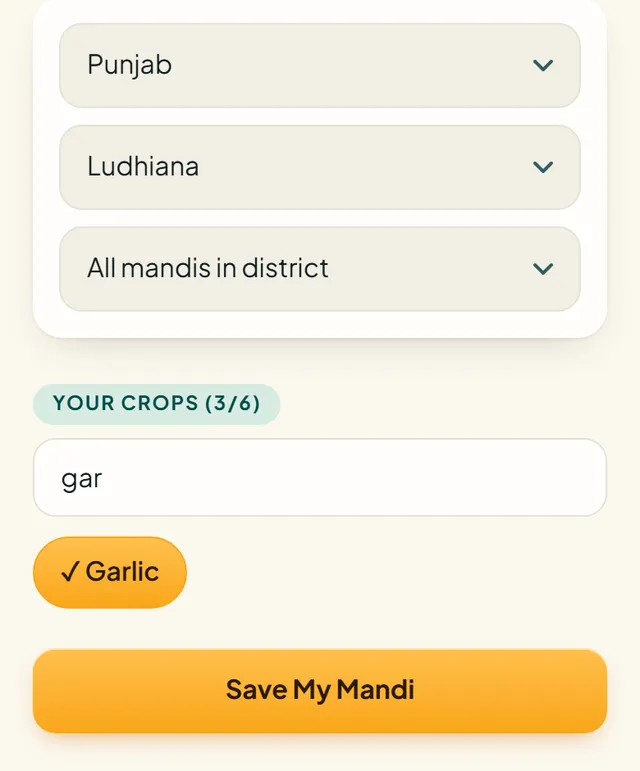
Settings screen with Punjab, Ludhiana and All mandis chosen, and Garlic selected in the crop list
State, district and mandi, then your crops

Feature 2

My Mandi: your crops at a glance

The My Mandi tab shows today's prices for the crops you chose, at the place you chose.

  1. Tap My Mandi in the bottom bar. If you have not picked crops yet, it takes you straight to Settings.
  2. The price map shows every mandi in your state as a tile for the crop you select. Green is cheaper and saffron is dearer. Tiles with a ring are in your district. Tap See rates for the full list.
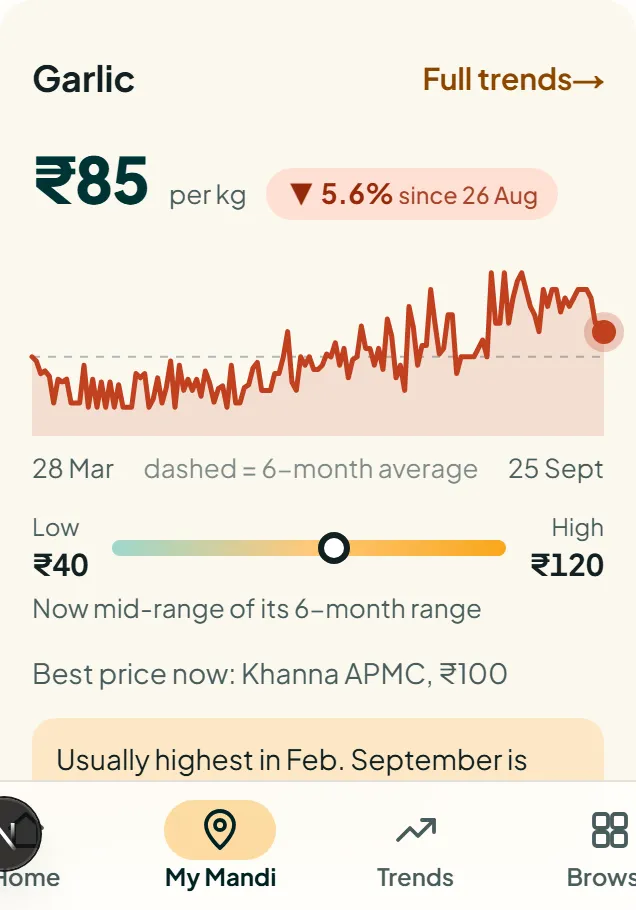
  3. Below the map, each crop has a card: the price per kg, how much it changed over the last 30 days, and a 6-month chart. Touch or drag along the chart to read any day.
  4. The bar under the chart shows whether today's price is near its 6-month low or high. Tap Full trends for the whole story.

Good to know The date under your mandi's name is when reports last came in. Mandis do not report every day, so it can be a few days old.

Open My Mandi
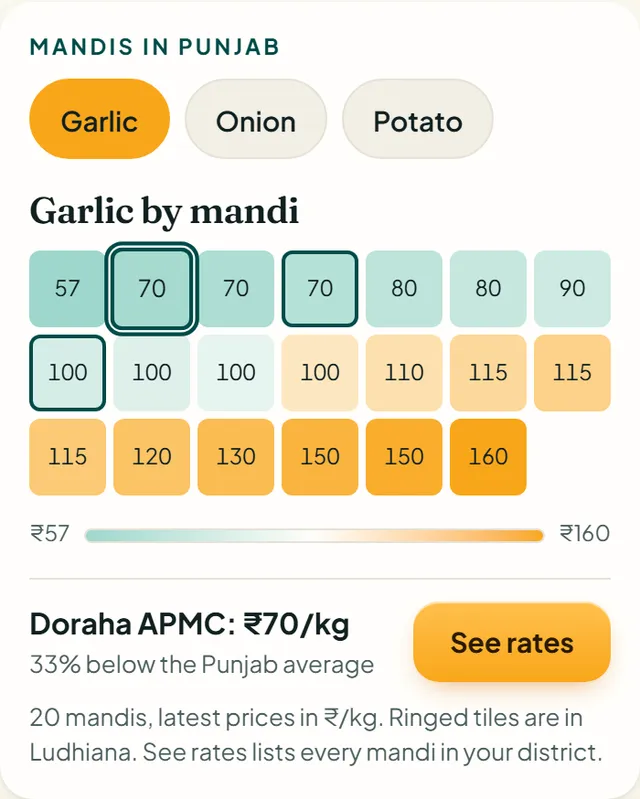
Price map of mandis in Punjab for garlic, shown as coloured tiles
Price map: every mandi in your state
Garlic card with price per kg, six month chart and price range bar
One card for each crop you follow

Feature 3

Look up any rate

Need a price for a crop you have not saved? Use the finder on the home page.

  1. Tap Home. In Look up any rate, choose a State, then a Crop. Tap the box and type to search.
  2. Tap Show rates.
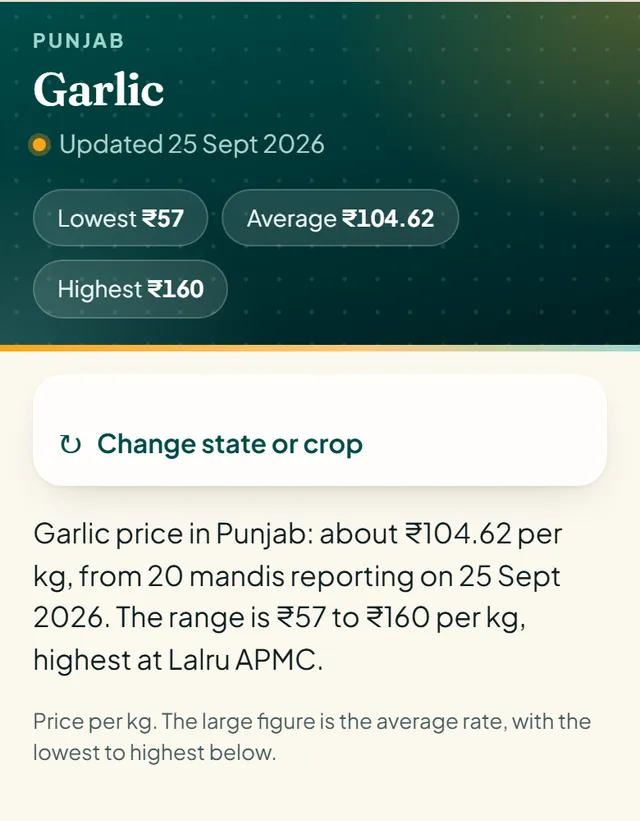
  3. You get the lowest, average and highest price per kg, the mandis grouped by district, and the mandis paying the most right now.
  4. Tap a mandi to see everything it sells, or See price trends to see how the price has moved.

Good to know Prices are per kg. The government publishes them per quintal (100 kg), so we divide by 100 to save you the maths.

Go to Home
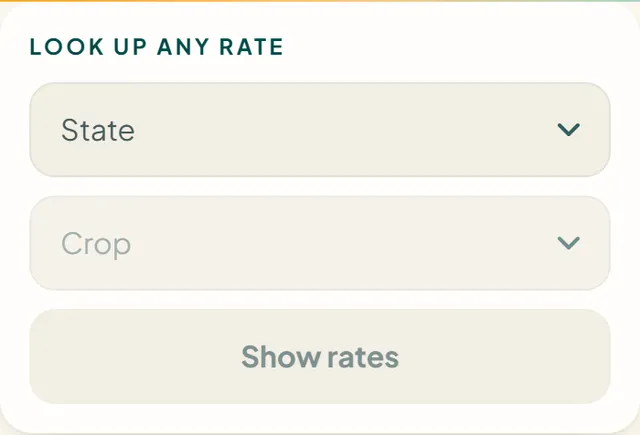
Look up any rate box with State and Crop pickers
The finder on the home page
Garlic price in Punjab with lowest, average and highest price
Rates for a crop in a state

Feature 4

Popular crops and price movers

Two quick views on the home page for what is moving right now.
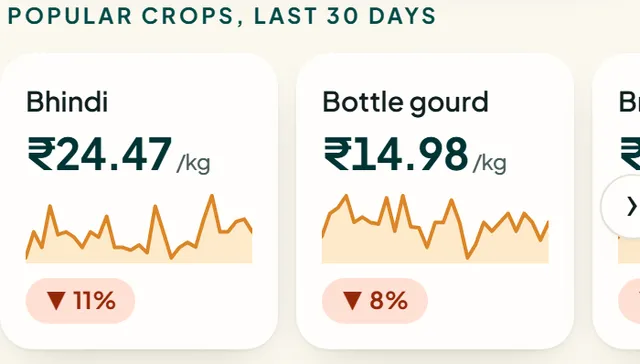
  1. Popular crops is a row of cards. Swipe sideways, or tap the arrow. Each card shows the price and how it changed over the last 30 days. Tap one for its trends.
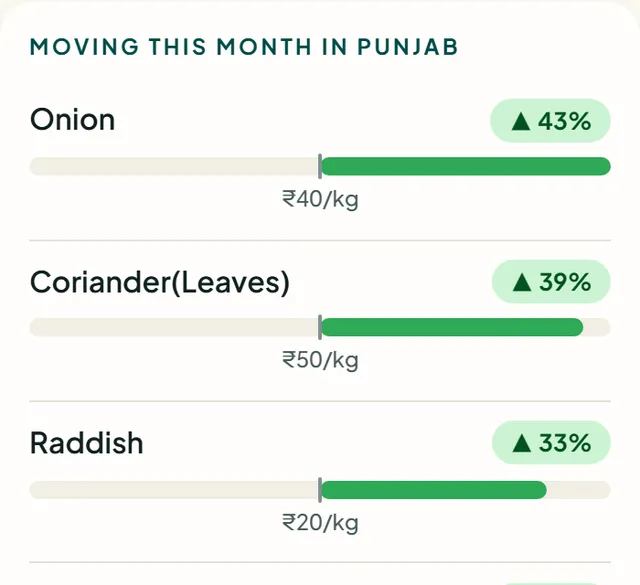
  2. Moving this month lists the crops rising or falling fastest. Once you have saved My Mandi it shows your state. Until then it shows all of India.
  3. Tap any crop to open its price trends.
Row of popular crop cards with price and 30 day change
Popular crops, last 30 days
Moving this month list with rising and falling crops
Biggest price moves

Feature 5

Price trends and best month to sell

See how a crop's price moves over months and years, and which month it has usually sold highest.

  1. Tap Trends in the bottom bar and choose a crop.
  2. The top cards show the latest price, the change since last month and a year ago, and the month it usually sells highest.
  3. Season at a glance shows the usual price in each month. The tallest bar marked Best is the month prices are usually highest.
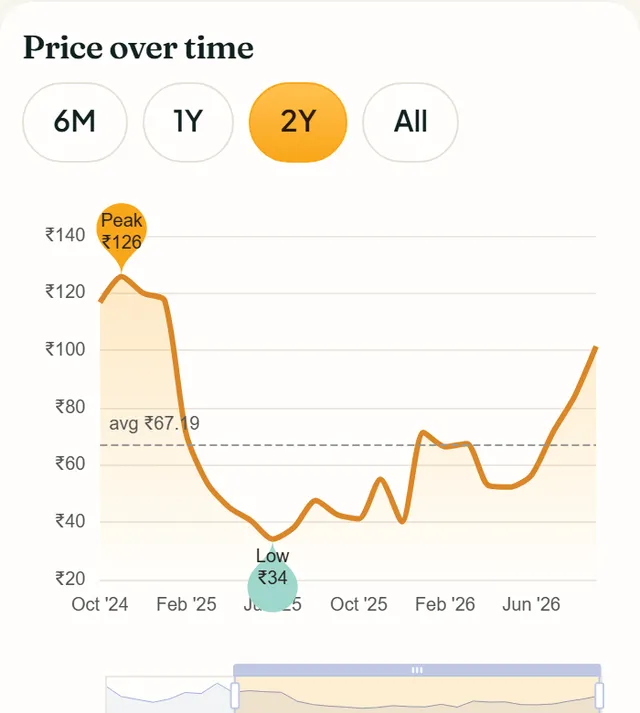
  4. Price over time: use 6M, 1Y, 2Y or All. Pinch or drag to zoom. Tap a month to see its day-by-day prices.
  5. Scroll on for Year against year, a month-by-month grid, and Where prices are highest. Tap a bar there to look inside a state or district.

Good to know Best month is a pattern from past prices, not a forecast. It needs at least 2 full years of prices. Small mandis often do not have that, and the page then offers a wider area.

Open Trends
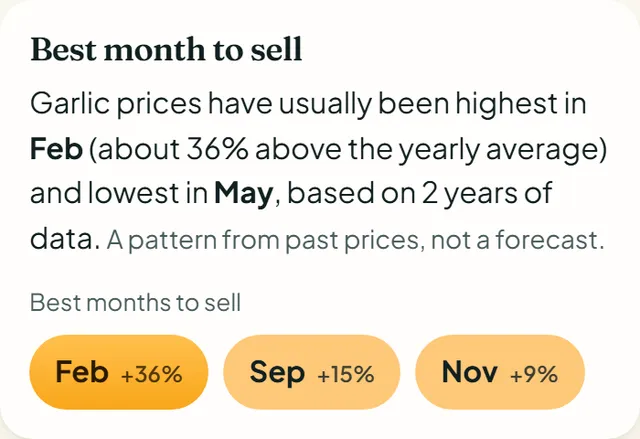
Best month to sell card saying prices are usually highest in February
The best months to sell
Price over time chart with 6M, 1Y, 2Y and All buttons
Zoom and tap any month

Feature 6

Change crop or place

Trends open for your saved district. Widen or narrow the view in a few taps.

  1. On a trends page, tap Change crop or place.
  2. Tap a box: Crop, State, District or Mandi. A list slides up from the bottom. Type to search, then tap your choice.
  3. The trail under the page title (India, State, District) takes you back up a level. India shows the whole country.

Good to know The same list is used everywhere in the app, so you never have to scroll a tiny dropdown.
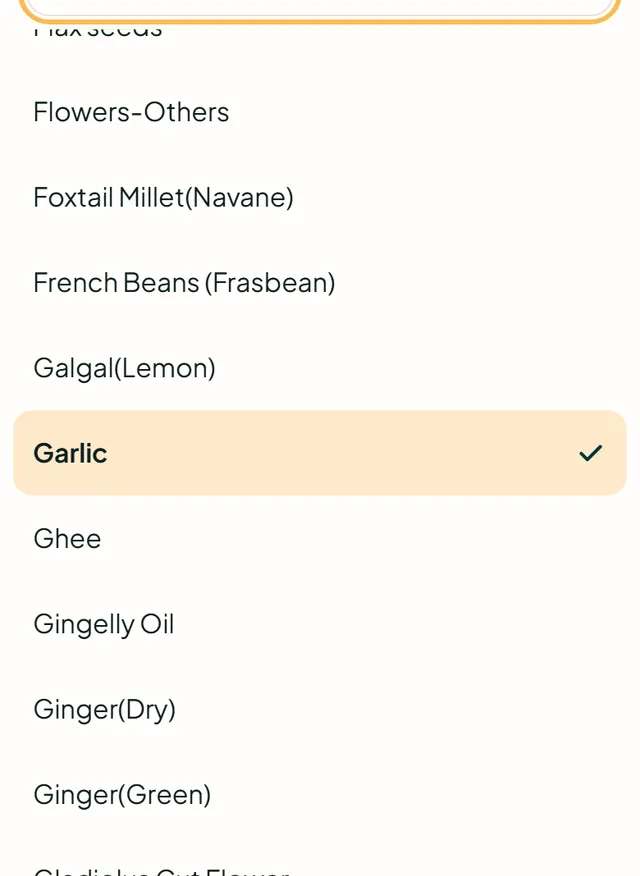
Crop list sliding up from the bottom with a search box and Garlic selected
Search and tap to choose

Feature 7

Browse by state

Explore every state, district and mandi.
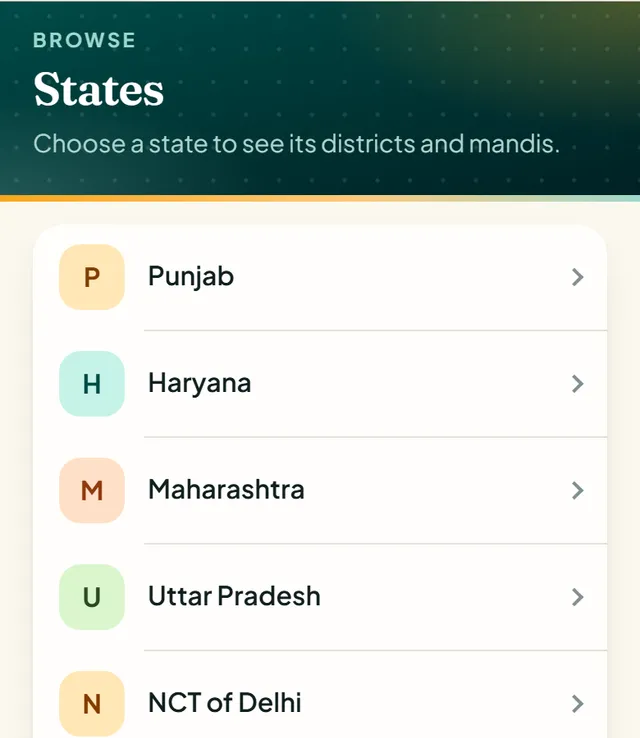
  1. Tap Browse in the bottom bar and choose a state.
  2. Choose a district, then a mandi.
  3. You see the latest price of every crop that mandi reports. Tap a crop for its trends.
Browse states
List of states to browse
Start with a state

Feature 8

Price history: compare mandis

Put several mandis of one crop side by side.
  1. Open the menu and tap Price history.
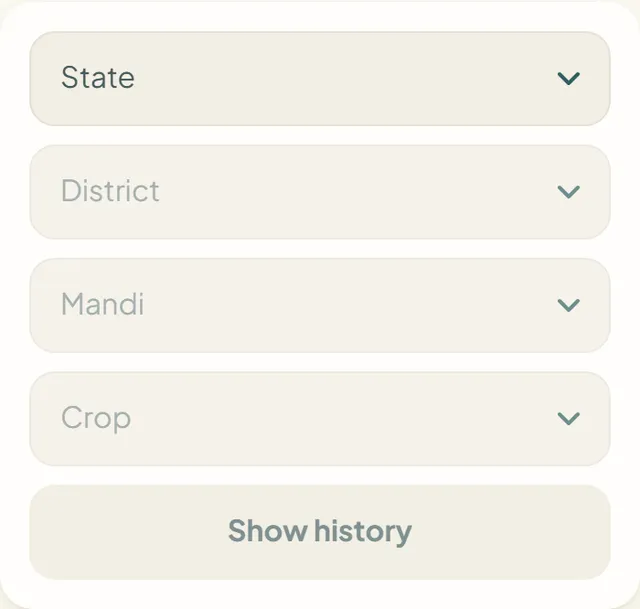
  2. Choose a State, District, Mandi (or all mandis in the district) and a Crop.
  3. Tap Show history. You get one line for each mandi. Touch the chart to read a day, and open a mandi below to see its recent reports.
Open Price history
Price history form with State, District, Mandi and Crop pickers
Pick a place and a crop

Feature 9

The menu and adding Local Mandi to your phone

Find every page from the menu, and keep the app one tap away.
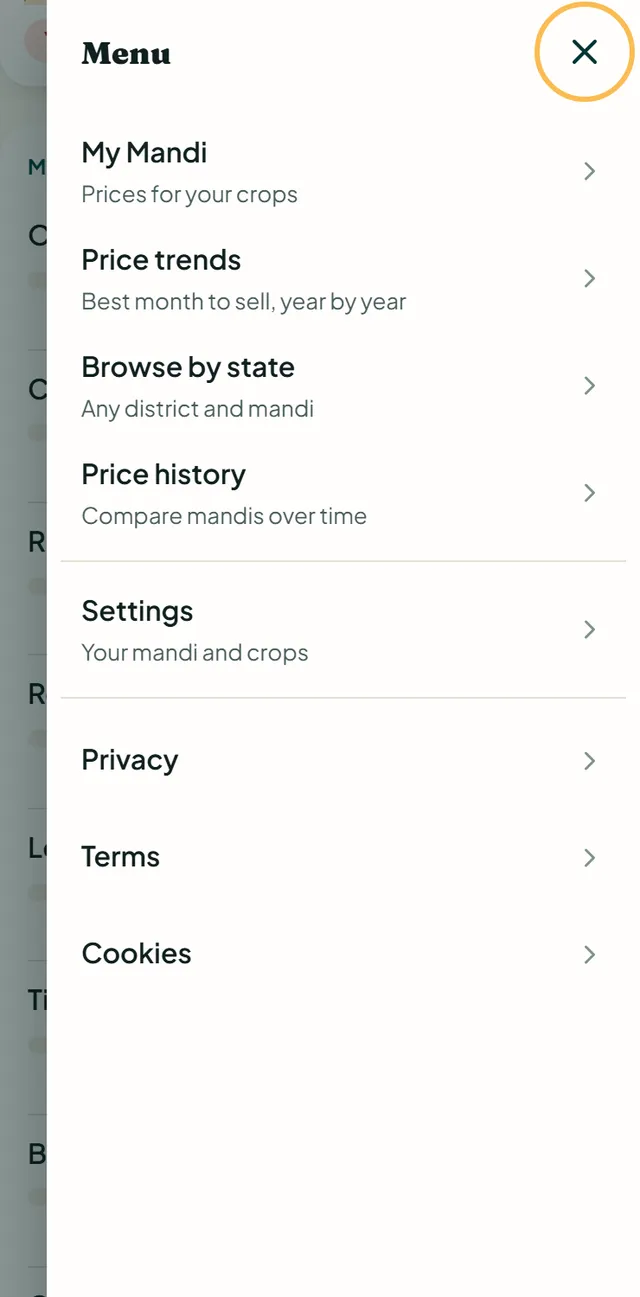
  1. The menu (top right) lists My Mandi, Price trends, Browse by state, Price history, Settings and Help, plus Privacy, Terms and Cookies.
  2. To add it to your phone: on iPhone tap Share, then Add to Home Screen. On Android open the browser menu and choose Add to Home screen or Install app.
  3. It then opens full screen like any other app, with the bottom bar for Home, My Mandi, Trends and Browse.
The menu with My Mandi, Price trends, Browse by state, Price history and Settings
The menu

Good to know

About the prices

  • Prices come from the Government of India open data platform (data.gov.in, Agmarknet mandi reports), used under the Government Open Data License - India.
  • Prices are shown per kg. Each figure has the date of its report. Mandis do not report every day, so the latest price can be a few days old.
  • The feed sometimes has stray values, such as a price of ₹10 per quintal. Summaries and averages ignore prices far from the rest.
  • Local Mandi is independent and not affiliated with the Government of India. Prices are for information only, not advice. Check with the mandi before you buy or sell.

Read the full terms